Creating a Course
📺 Video Tutorial: Watch here
Creating a new course in PROMPT is simple and takes just a few steps. Follow this guide to get started.
1. Open the Course Creation Dialog
Click the plus icon in the sidebar to create a new course:
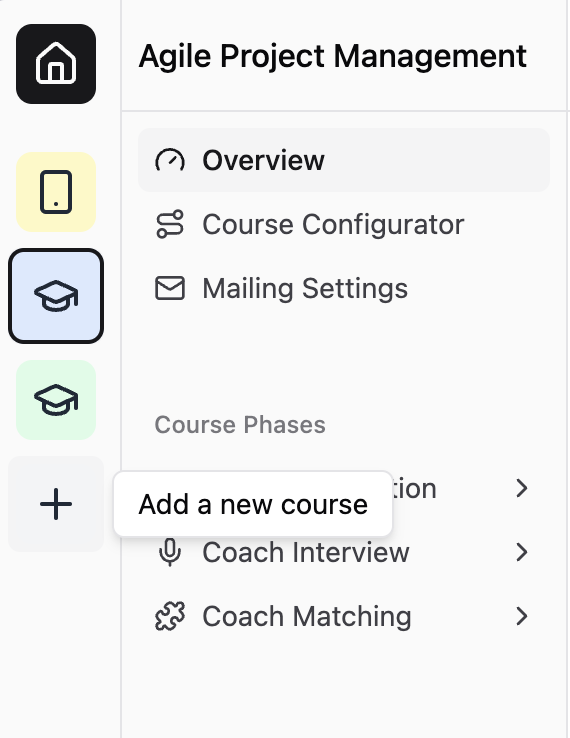
Click the plus icon to start creating a new course.
⚠️ Note: If you don’t see the plus icon, you do not have the necessary permissions. Please contact a Prompt Administrator to request access.
2. Fill in Basic Course Information
In the course creation form, provide the following details:
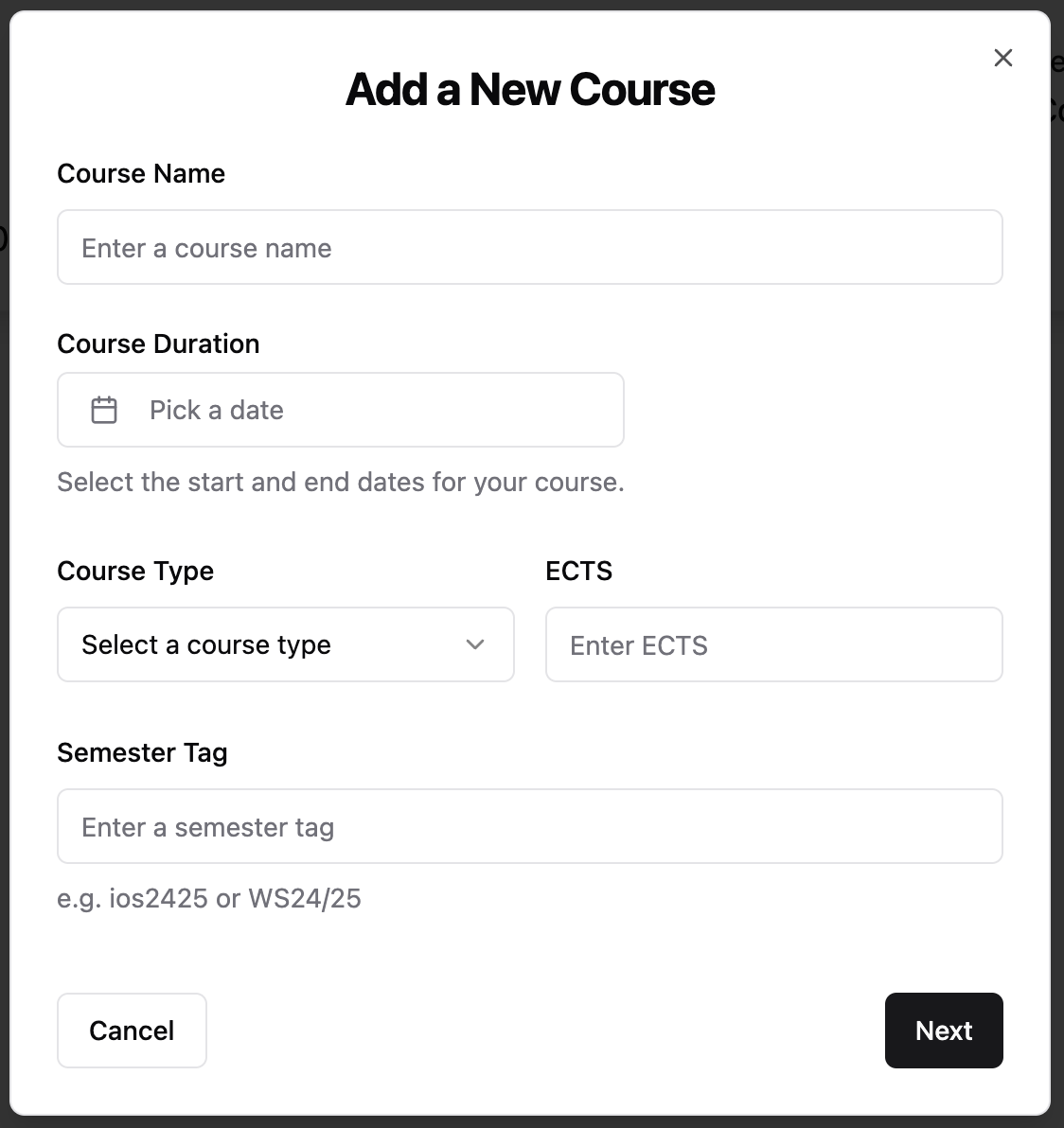
Form fields for entering course name, duration, type, and semester tag.
-
Course Name: Choose a meaningful name for your course.
🚫 This cannot be changed later.
-
Course Duration: Select the course’s start and end dates.
✅ This can be updated later if needed.
-
Course Type: Choose one of the following:
- Lecture → You must manually enter the number of ECTS credits.
- Seminar → Fixed to 5 ECTS.
- Practical Course → Fixed to 10 ECTS.
-
Semester Tag: Enter a short identifier (e.g.,
ios25,ss25).🚫 This cannot be changed later.
3. Customize Appearance
Choose an icon and background color to personalize how the course is displayed on the home screen and in the sidebar:
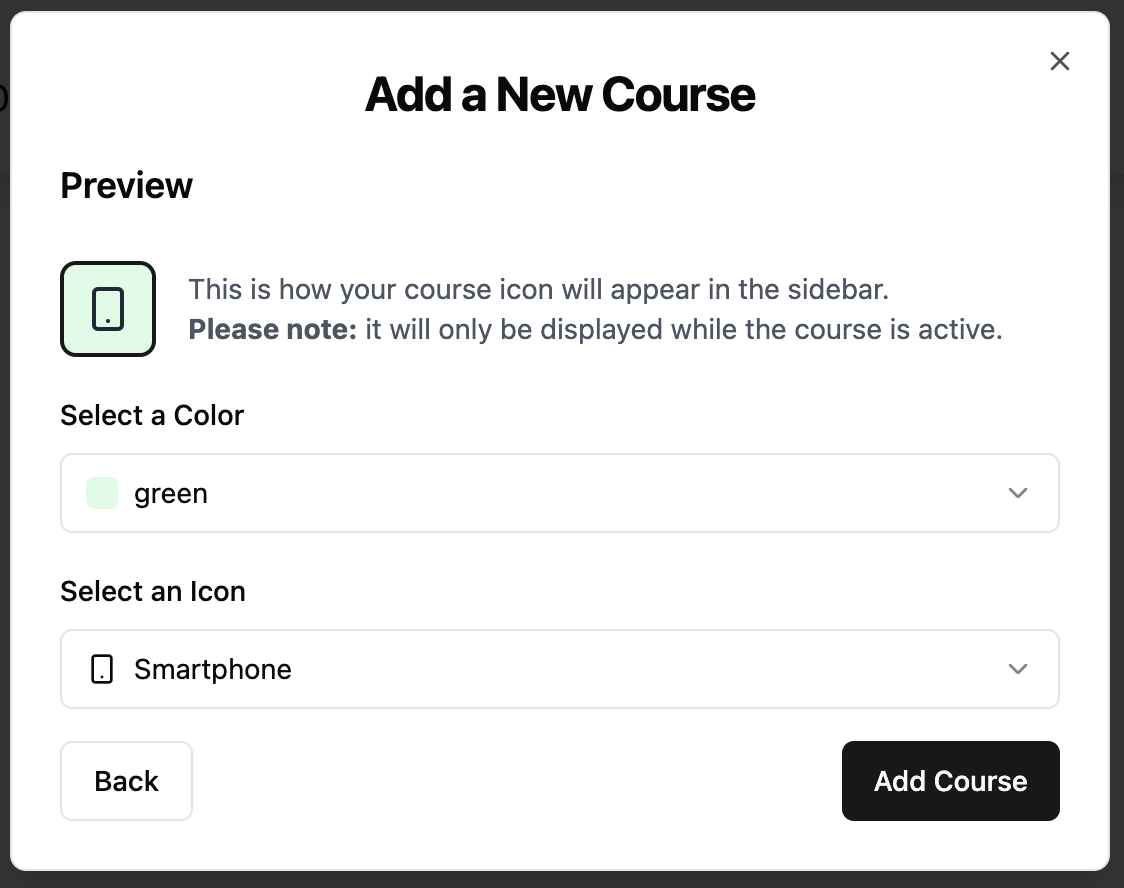
Customize the icon and background color for the course.
4. Finalize Course Creation
Click the “Create Course” button to finish.
- The course will be created in the system.
- Corresponding Keycloak access groups will be generated automatically.
- You will be assigned as the Course Lecturer for this course.
✅ Done! Your course is now ready for configuration.